


TL;DR
Cold email software can send from Outlook and Microsoft 365 inboxes once Authenticated SMTP is on for each mailbox. Prefer tools that sign in with Microsoft, and keep each inbox far below Microsoft's daily limits.
Connect your Outlook inboxesYes, cold email software can send from Outlook and Microsoft 365 inboxes. The tool connects to your mailbox and sends through Microsoft's servers, so mail goes out from your own address and replies come back to it. Two things trip most people up. Microsoft often has Authenticated SMTP switched off for the mailbox, so the connection fails until an admin turns it on. And password-based connections are on their way out, so pick a tool that lets you sign in with Microsoft. After that, the job is staying well inside Microsoft's sending limits and its rules for senders.
How cold email tools connect to Outlook
There are two common ways, and the second one matters more each year:
Method | How it works | What to know |
|---|---|---|
App password | You create a separate password for the mailbox and paste it into the tool | Needs two-step verification on the account, and relies on Basic authentication |
Sign in with Microsoft | You approve the tool in a Microsoft sign-in window, with no password stored | Uses OAuth, which Microsoft supports for SMTP AUTH |
Microsoft has said that at the end of December 2026, Basic authentication for SMTP AUTH will be disabled by default for existing tenants. Admins will still be able to turn it back on, and Microsoft plans to announce a final removal date in the second half of 2027. If you're choosing a tool now, make sure it can sign in with Microsoft.
Turn on Authenticated SMTP first
Microsoft lets admins switch SMTP AUTH off for a whole organisation and on for individual mailboxes. Its own guidance is to keep it off and enable it only where needed, so many mailboxes start with it disabled.
To turn it on for one mailbox, Microsoft's page on enabling SMTP AUTH in Exchange Online gives these steps:
Open the Microsoft 365 admin center and go to Users, then Active users.
Select the user, then Mail.
Under Email apps, choose Manage email apps.
Tick Authenticated SMTP and save.
If you want the tool to read replies, tick IMAP in the same place. And if your organisation uses security defaults, Microsoft says SMTP AUTH is already disabled, so talk to whoever manages your tenant before you change anything.
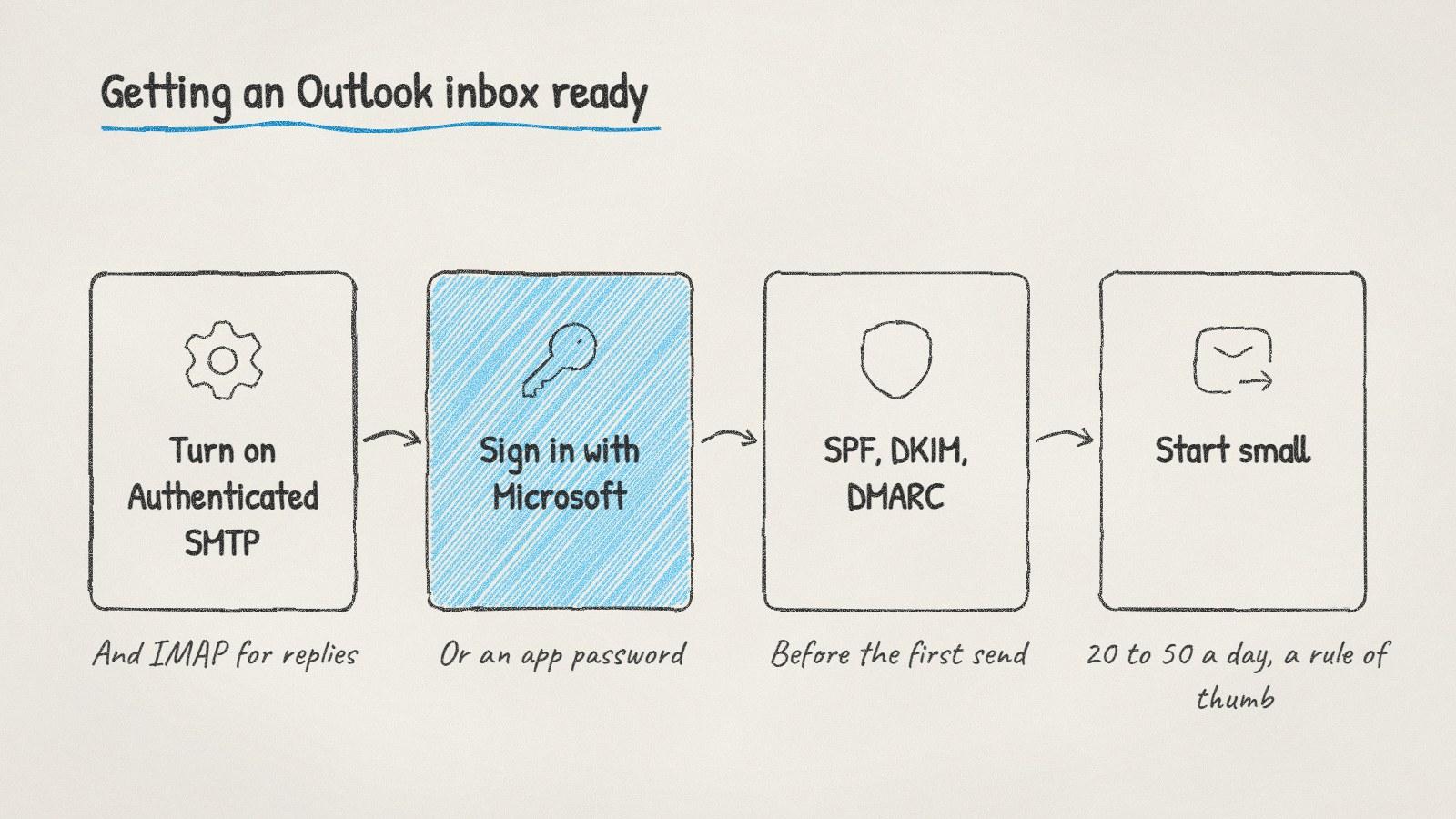
Getting an Outlook inbox ready for cold email, in order.
Microsoft's sending limits
Microsoft publishes its Exchange Online limits. The ones that matter for outreach:
Limit | What Microsoft allows |
|---|---|
Recipients per mailbox | 10,000 a day |
Message rate | 30 messages a minute |
External recipients per tenant | A daily cap for the whole organisation, based on your number of licences |
Sending from an onmicrosoft.com address | 100 external recipients a day for the whole organisation |
None of these is a target. They're ceilings for normal business mail, and a mailbox that sends cold email anywhere near them will have deliverability problems long before it hits them. A common rule of thumb is 20 to 50 cold emails a day per inbox, raised slowly on new inboxes. Never send cold email from the default onmicrosoft.com address. Use your own domain, or a secondary domain set up for outreach.
Microsoft's rules for senders
Separately from the limits, Outlook.com, Hotmail, Live and MSN addresses have authentication rules for any domain sending more than 5,000 messages a day. SPF and DKIM must pass, and the domain needs a DMARC record. Mail that fails comes back with the 550 5.7.515 error, and our guide on fixing Outlook's 550 5.7.515 error covers it step by step. Set them all up before your first send, whatever your volume.
Connecting Microsoft 365 to outreach tools is a regular topic in r/Office365 and r/coldemail.
Doing it with ManyPI
Disclosure: ManyPI is our product.
To connect an Outlook inbox in ManyPI, open Outreach, then Email accounts, add an inbox and pick Outlook / Microsoft 365, which covers Outlook.com and Microsoft 365, including Microsoft 365 bought through GoDaddy. ManyPI fills in Microsoft's server settings and shows the steps to turn on IMAP and Authenticated SMTP, including the GoDaddy version. You then sign in with Microsoft where that's offered, or paste an app password, and send a test message. ManyPI sends over SMTP and reads replies and bounces over IMAP.
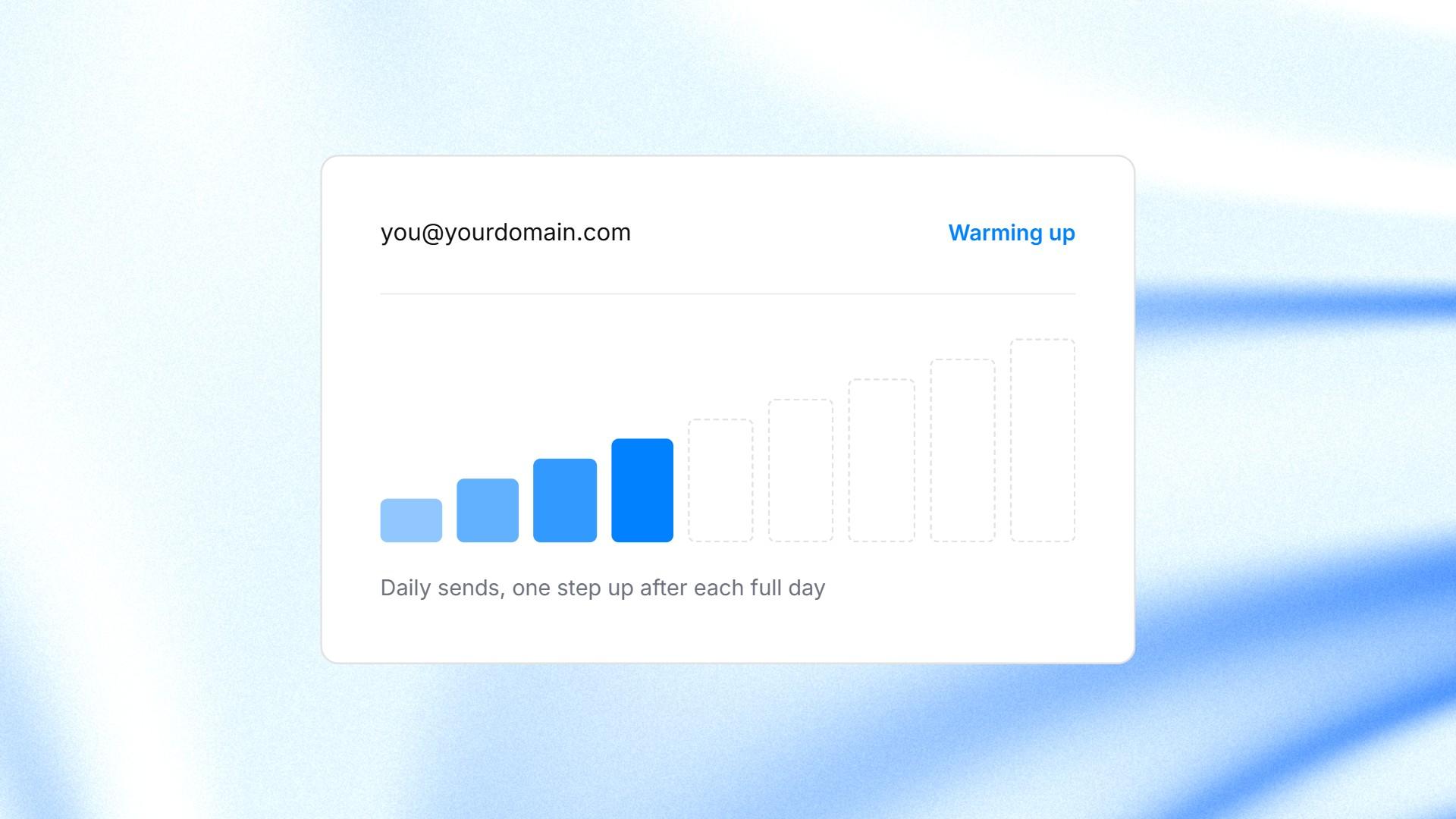
An inbox in ManyPI raising its daily volume step by step.
You can connect as many inboxes as you like on every paid plan. Each one ramps its daily volume gradually, capped at 60 sends a day. Every email is checked against the receiving mail server before a campaign can use it, and bounce protection pauses an inbox if bounces climb. The cold email outreach page shows a campaign end to end.
If the test message fails with a password error even though the password is right, the usual cause is Authenticated SMTP still being off. ManyPI's setup guide allows up to an hour for that change to apply, so wait before you try again.
Written by
Bastian W.
Content Manager / ManyPI