


TL;DR
"You have reached a limit for sending email" means Google has paused sending from that account for up to 24 hours. Receiving still works. Wait it out, check what triggered it, then spread outreach across more inboxes at lower volume.
Spread sending across inboxesIf Gmail just told you "You have reached a limit for sending email" or "You reached a Gmail sending limit", Google has stopped that account from sending new messages for up to 24 hours. You can still receive email and use the rest of Google Workspace. Once the period ends, the limit resets on its own.
There's no button that lifts it early. What you can do is find out which limit you hit, make sure the account wasn't misused, and change how you send so it doesn't happen again on the day it matters.
The Google Workspace sending limits
Google publishes these limits in its Gmail sending limits for Google Workspace page:
Limit | Per user |
|---|---|
Messages per day | 2,000 (1,500 for mail merge) |
Recipients per message | 2,000 total, 500 external |
Total recipients per day | 10,000 |
External recipients per day | 3,000 |
Unique recipients per day | 3,000 total, 2,000 external |
Trial accounts are capped at 500 messages and 500 unique external recipients a day, and Google doesn't raise those during the trial.
The one cold outreach usually runs into is unique external recipients. Each new prospect counts against it, while follow-ups to people you've already emailed don't add new ones.
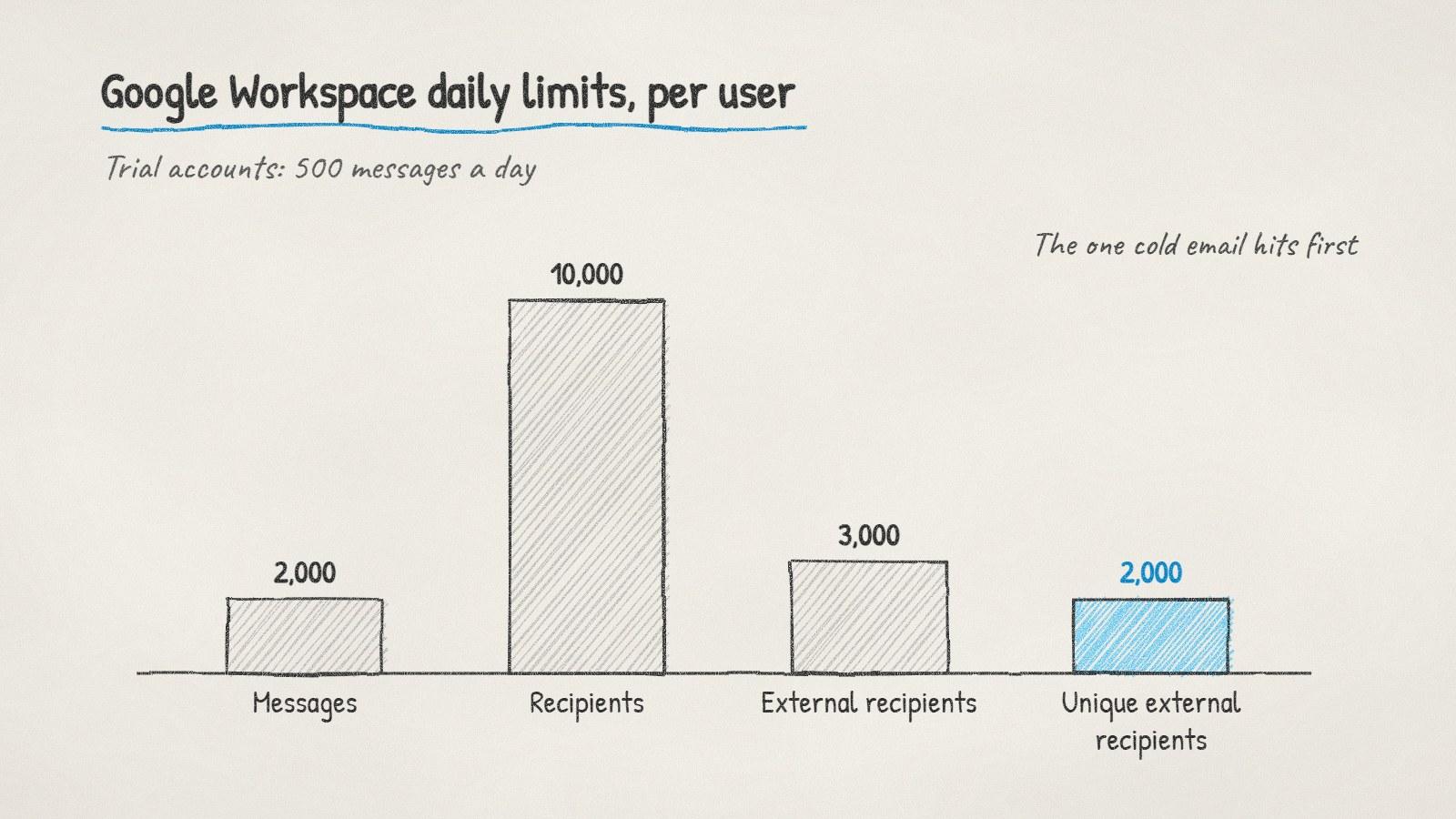
Google's daily sending limits per Workspace user. Cold outreach usually runs into unique external recipients first.
What to do right now
Stop sending from that account. Pause any campaign or mail merge tool using it, so nothing keeps queuing against the limit.
Check the Sent folder. If there are messages you didn't send, treat it as a possible compromise: change the password and review connected apps.
Use another account for anything urgent. A colleague's inbox or a different domain's inbox can send today's important replies.
Wait for the reset. Google says sending can be blocked for up to 24 hours.
Why the limit is a warning sign
The 2,000-a-day ceiling is far above what any single inbox should send as cold email. If cold outreach got close enough to trip a Google limit, the inbox was almost certainly sending more than mailbox providers like to see from one sender.
A common rule of thumb for cold email is 20 to 50 messages a day per inbox, spread across working hours. That's not a Google rule. It's what most deliverability guides settle on, because a person's inbox sending hundreds of messages to strangers looks nothing like a person.
So the fix isn't to get closer to the limit more carefully. It's to send less per inbox.
How to send more without hitting limits
Approach | Typical cold volume | Trade-off |
|---|---|---|
One main-domain inbox | 20 to 50 a day | Puts your main domain's reputation at risk |
Several inboxes on one secondary domain | 20 to 50 each | Spreads load, but one domain carries it all |
Inboxes across two or three secondary domains | 20 to 50 each | More setup, and the safest way to scale |
Secondary domains are domains that clearly belong to you, such as a variation of your brand name, with their own mailboxes and authentication. They need a few weeks of gradual sending before they carry full volume. Our guide on how long to warm up a new domain covers the timing, and the free cold email volume calculator works out how many mailboxes a daily target needs.
Doing it with ManyPI
Disclosure: ManyPI is our product.
ManyPI sends campaigns from your own Gmail, Outlook or SMTP inboxes, and you can connect as many as you like on every paid plan. Each inbox has a daily cap you set, counted over a rolling 24 hours, and sends are paced across the day instead of going out in a burst. Spread a campaign across several inboxes and no single account gets anywhere near Google's limits. Follow-ups stop the moment someone replies. The cold email outreach page has the details.
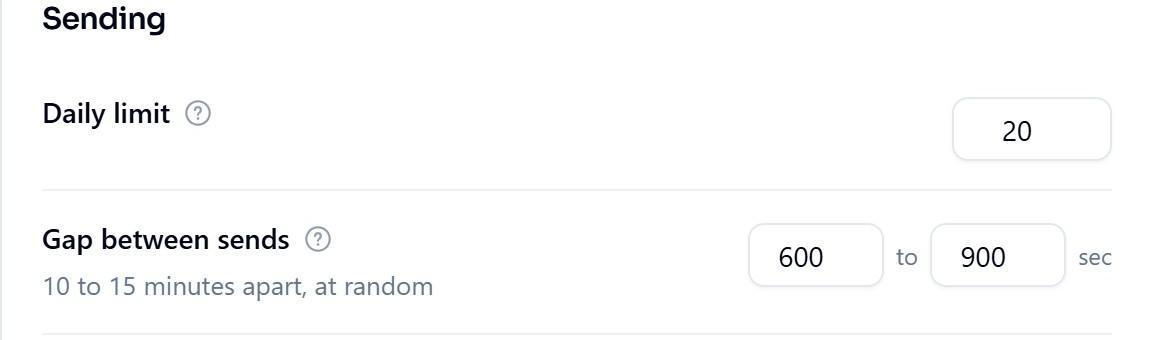
Each inbox in ManyPI has its own daily limit and a random gap between sends.
This advice covers the sending limit only. If Google suspended the whole account rather than just sending, or you see a policy notice in the Admin console, that's a different process. Start with your Workspace administrator and Google's account recovery steps.
Written by
Ole Mai
Founder / ManyPI