


TL;DR
Buy a domain that clearly belongs to your brand, add two or three mailboxes, publish SPF, DKIM and DMARC, point the website at your main site, then start a slow warmup. Most of it takes an afternoon.
Connect inboxes and sendSetting up a separate domain for cold email takes an afternoon. Waiting for it to be ready takes a few weeks. So it's worth getting the setup right the first time, because a missing record discovered in week three means starting the warmup over.
Here's the whole setup in order.
Buy a domain that clearly belongs to your company.
Create two or three mailboxes on it with your email provider.
Publish SPF, DKIM and DMARC records, and make sure MX is set so replies arrive.
Point the domain's website at your main site.
Set up the mailboxes like real people's inboxes.
Start a slow warmup.
Why use a separate domain at all?
Cold email carries more risk than everyday business email. If a campaign goes wrong, from a bad list or a spike in complaints, the domain that sent it takes the reputation hit. A separate domain keeps that risk away from the one your invoices, support replies and customer emails come from.
Step 1: Choose the domain
Pick a close variation of your brand: yourbrand.co, getyourbrand.com, tryyourbrand.com, yourbrandhq.com. People should recognise it as you.
Don't pick a domain that impersonates someone else, and don't use it to hide who you are. In the US, CAN-SPAM prohibits misleading header information, and the FTC's compliance guide says the From line and domain have to accurately identify the sender.
Step 2: Create mailboxes
A common rule of thumb is two or three mailboxes per sending domain, each one a real person's name (for example, anna@yourbrand.co). Use Google Workspace or Microsoft 365 rather than a cheap host, since both handle authentication well and have established sending reputations.
Step 3: Publish the DNS records
These records tell receiving servers that your mailboxes are allowed to send for the domain.
Record | Type and host | Example value | What it does |
|---|---|---|---|
MX | MX at the root | Your provider's mail servers | Lets the domain receive replies |
SPF | TXT at the root | v=spf1 include:_spf.google.com ~all | Lists the servers allowed to send for you |
DKIM | TXT at the selector your provider gives you (Google uses google._domainkey) | Generated in your admin console | Signs each message so it can't be altered |
DMARC | TXT at _dmarc | v=DMARC1; p=none; rua=mailto:dmarc@yourbrand.co | Tells receivers what to do when checks fail, and sends you reports |
For Microsoft 365, the SPF include is spf.protection.outlook.com, and DKIM is switched on in the Microsoft Defender portal, which gives you two CNAME records to publish.
Google's sender guidelines require SPF or DKIM for every sender to Gmail, and both plus DMARC for senders above 5,000 messages a day. Publish all three regardless of volume.
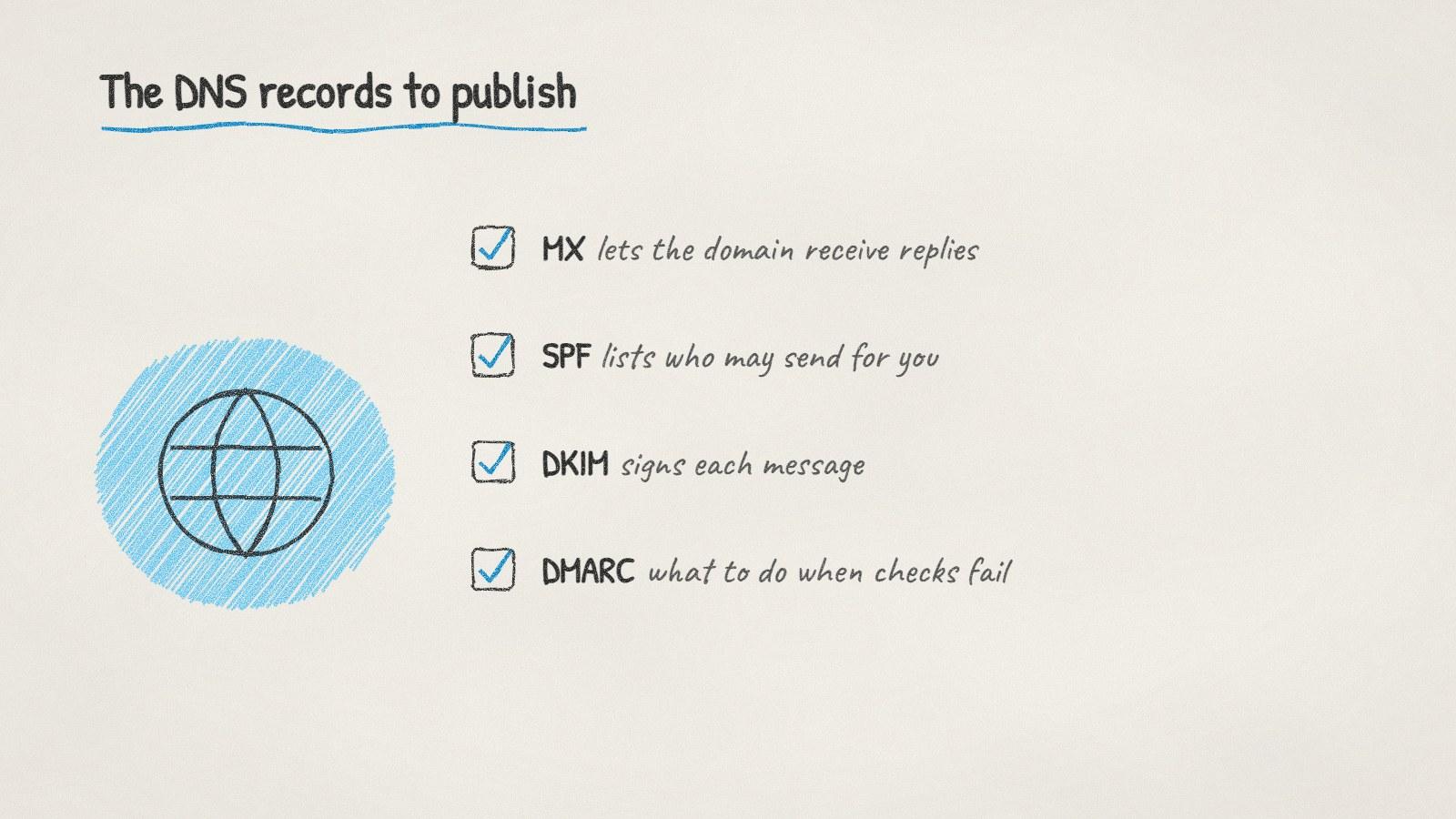
The four DNS records a cold email domain needs, and what each one does.
Mistakes that break the setup
Two SPF records. A domain may have only one. Two cause a failure for both. Merge them into one record.
Too many SPF lookups. SPF allows at most 10 DNS lookups (RFC 7208). Every include counts, so don't stack tools you don't send from.
DMARC set to reject on day one. Start at p=none, read the reports, then tighten it once you're sure every legitimate sender passes.
No MX record. Your emails go out, but replies bounce. You won't notice until someone tells you.
DKIM generated but never switched on. In Google Workspace, after publishing the record, you have to go back and start authentication.
Step 4: Point the website at your main site
Someone who gets your email may type the domain into a browser. Redirect it to your main website so they land somewhere real.
Step 5: Make the mailboxes look lived in
Add a profile photo, a signature with your name, role and company, and the main website address. If a prospect checks who you are, it should take them one click.
Step 6: Warm up before you scale
A new domain needs a few weeks of gradual sending. Our guide on how long to warm up a new domain has a typical ramp. Before the first campaign, run your template through the free cold email compliance checker to catch a missing opt-out or postal address.
Doing it with ManyPI
Disclosure: ManyPI is our product.
Connect the new mailboxes to ManyPI and it checks the domain's SPF, DKIM, DMARC and MX records straight away. Anything missing or broken comes with a ready-to-paste record, so you don't have to work out the syntax. New inboxes then ramp their daily volume up gradually, every address is verified before sending, and campaigns stop for each lead the moment they reply. The cold email outreach page covers the setup.
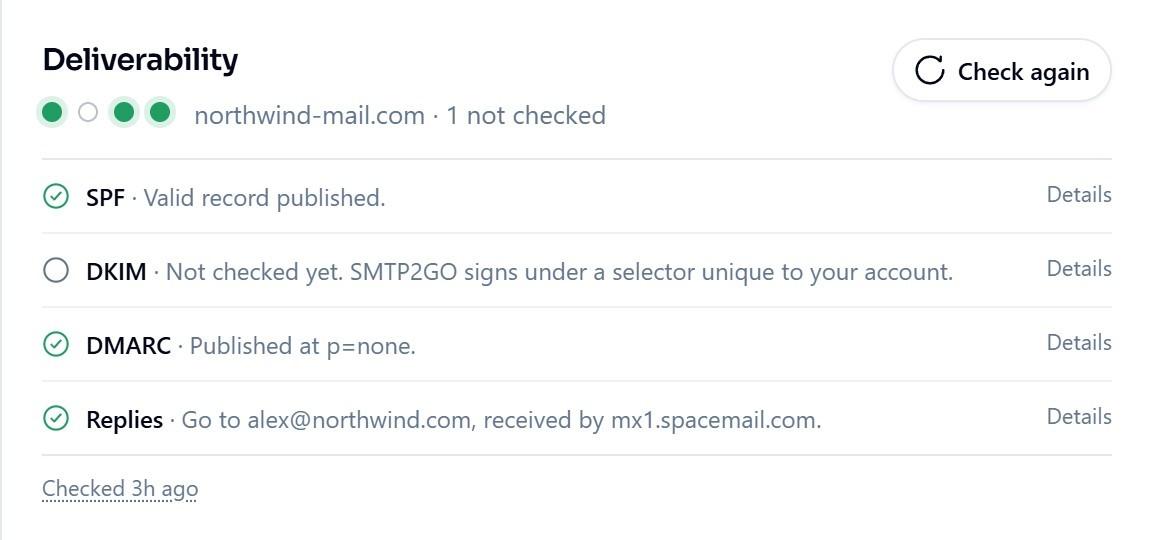
ManyPI's deliverability checks on a connected inbox, shown here with sample data.
DNS changes can take a while to spread, sometimes hours. If a check fails right after you publish a record, wait and check again before changing anything.
Written by
Ole Mai
Founder / ManyPI